If the narration on your Kindle Paperwhite sounds rushed, the fix depends on which kind of narration you are using. The Paperwhite offers two, and each has its own speed control. Knowing which is which saves a lot of poking through menus.
This guide covers how to slow down audiobook speed on a Kindle Paperwhite, which speed to try first, and what to do when a book has no audiobook at all.
Why the Paperwhite has two kinds of listening
The first kind is an Audible audiobook. A professional narrator recorded it, and the Paperwhite plays it back. The second kind is VoiceView, the built-in screen reader. VoiceView uses synthetic speech to read the text on the screen aloud, including the words of a book and the menus around it.
The two work differently and are adjusted in different places. An audiobook is a finished recording, so slowing it down stretches the same human performance. VoiceView generates its speech as it goes, and its rate is a setting of the speech engine.
Neither plays through the device itself. The Paperwhite has no built-in speaker and no headphone jack, so all sound goes out over Bluetooth. You need a pair of Bluetooth headphones or a Bluetooth speaker paired with the Kindle before anything will be heard.
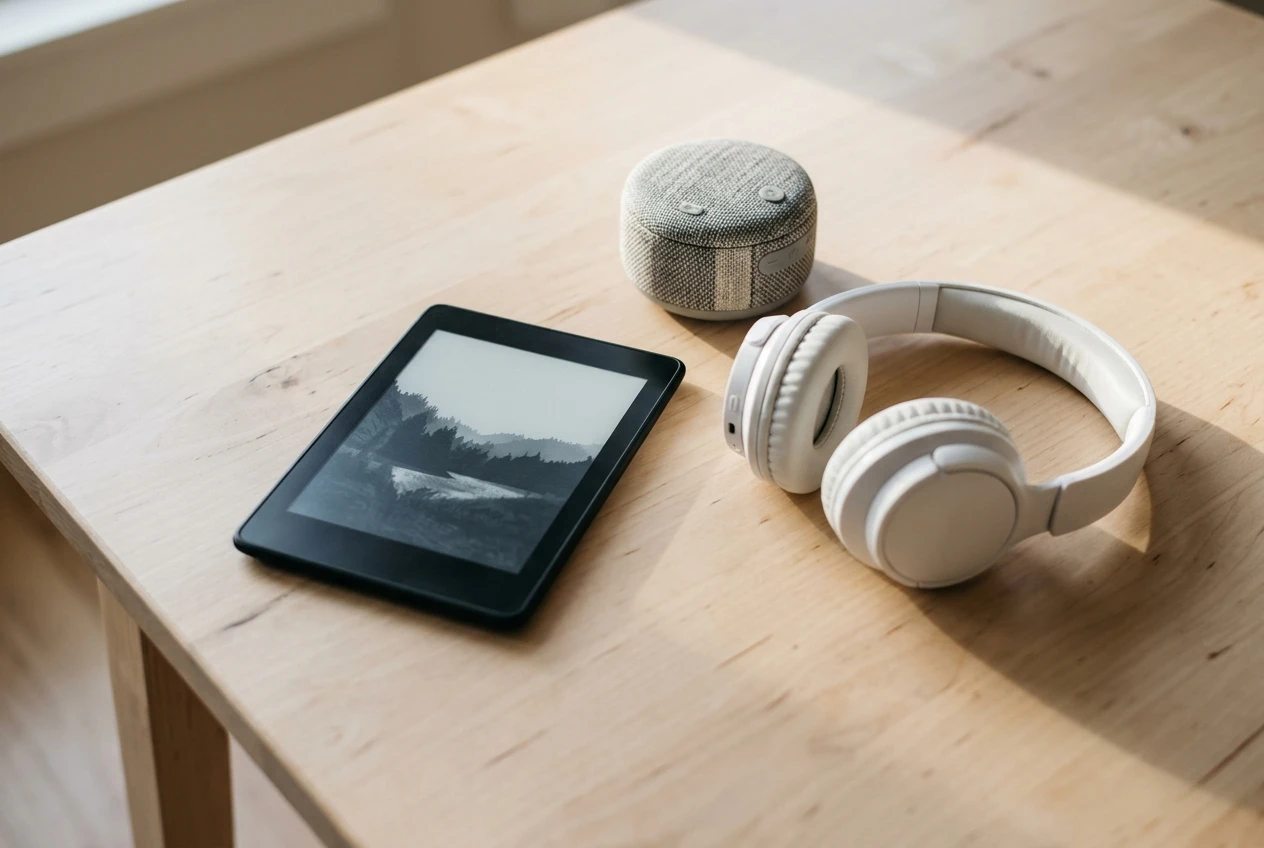
To pair, open the Kindle settings, go to Bluetooth, put your headphones or speaker in pairing mode, and select it from the list. The Kindle remembers the pairing, so you only do this once per device.
Slowing down an Audible audiobook over Bluetooth
With an audiobook open and playing through your headphones or speaker, bring up the player controls by tapping the screen. The speed control sits among them and shows the current speed, which starts at 1.0x. Tap it and choose a lower setting.
Menu labels and layout can shift slightly between software versions, so if you do not see the control right away, look for the number followed by an “x” on the player screen. The setting applies to the audiobook you are playing, and it is quick to change again if the new pace feels off.
A few practical points:
- Change the speed while the narration is playing. You hear the difference immediately, which makes it easier to judge than choosing a number from a list.
- Slowing the speed does not lower the pitch of the voice in a way you will notice at modest reductions. The narrator sounds like themselves, only more unhurried.
- If the pace is right but the volume is not, use the volume controls on your headphones or speaker. The Kindle has no separate speaker volume to adjust.
If you listen on a phone through the Audible app as well, that app has its own speed setting, and the two do not have to match. Each device remembers the pace you gave it.
Which speed to try first
The slowest speed available is 0.5x, which is half the normal pace. That floor is useful to know about, but it is a long way from where most people want to end up. Half speed makes a narrator sound drawn out and heavy, and the sentences can lose their rhythm.
Most listeners who find narration too fast are better served by small reductions. Start at 0.9x, then try 0.8x if that still feels hurried.

Here is what those settings mean in practice:
Speed | Compared with normal | A 10-hour book takes about |
|---|---|---|
1.0x | Normal pace | 10 hours |
0.9x | 10 percent slower | 11 hours 7 minutes |
0.8x | 20 percent slower | 12 hours 30 minutes |
0.5x | Half speed | 20 hours |
At 0.9x, the change is gentle. Many people notice only that the narrator seems a little more relaxed, with more space between sentences. At 0.8x, the slower pace is clearer, but it generally still sounds natural. Below that, the narration starts to sound stretched.
Give each speed a few minutes of real listening before deciding. The first minute at a new speed often feels odd because you were used to the old one. If you are listening to a book with dense sentences, such as non-fiction with long explanations, a slower speed tends to help more than it does with a fast-moving novel.
Using VoiceView when a book has no audiobook
Not every book has an audiobook. When there is none, VoiceView can read the book to you. It only needs the text, so it works with a wide range of books on your Kindle.
To turn it on, open the Kindle settings and go to Accessibility, then find VoiceView Screen Reader. The first time you switch it on, the Kindle may offer a short tutorial on its touch gestures, and it is worth completing it. If your Bluetooth audio is not yet paired, VoiceView will prompt you to connect it, since the speech has nowhere else to go.
The speech rate is in the VoiceView settings, within the same Accessibility area. Lower the rate there to slow the voice down, then have VoiceView read a passage so you can hear the result. As with audiobooks, adjust in small steps and listen for a while before deciding. Exact menu wording can differ between software versions, so follow the Accessibility section rather than looking for a particular label.
VoiceView’s rate is separate from the audiobook speed. Setting one does not change the other, so if you use both kinds of listening, you may end up with two different settings.
How VoiceView changes the way you navigate
With VoiceView on, the touchscreen behaves differently. Instead of tapping a button to activate it, you touch to hear what is under your finger, and you double-tap to activate it. Swipes move from one item to the next, and the Kindle reads each item aloud as you reach it.
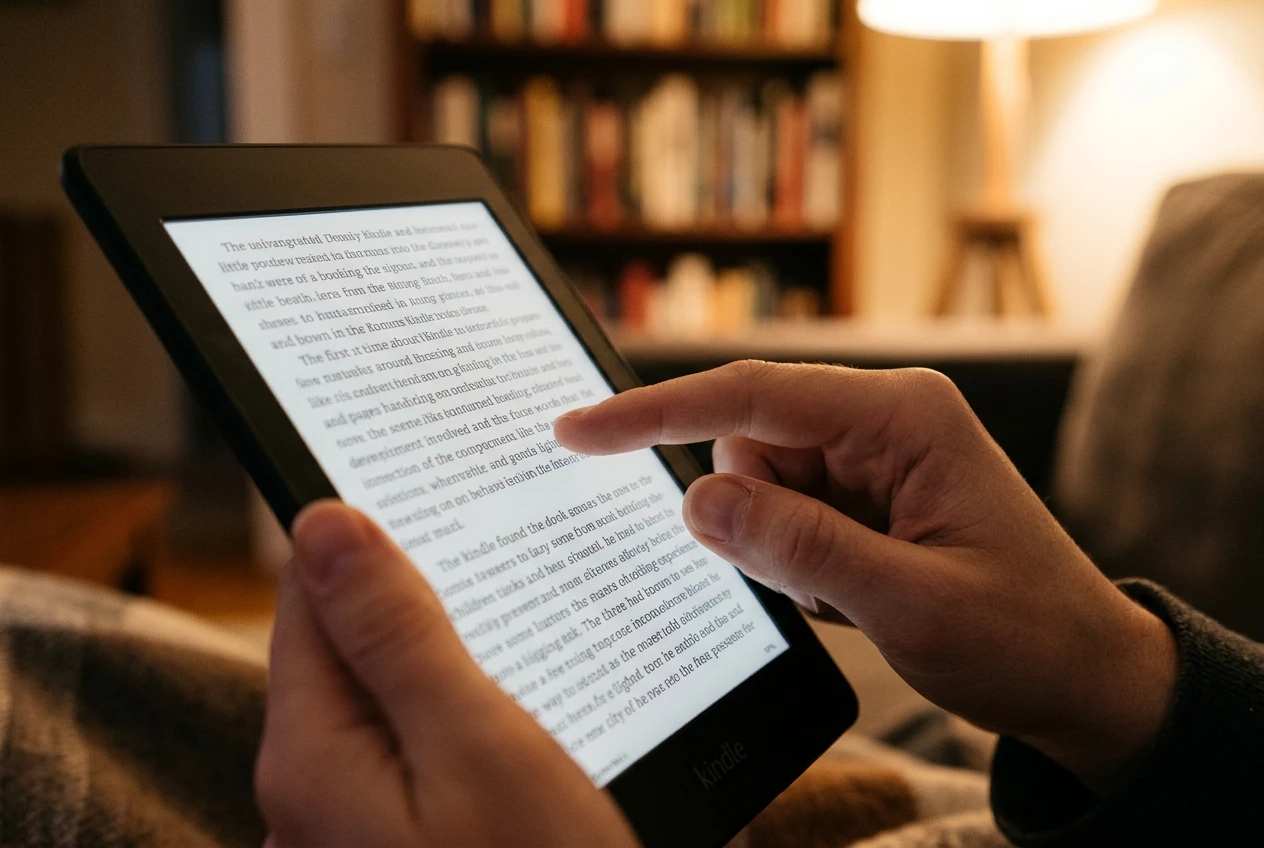
This takes a short time to get used to. Everything on the screen is spoken, not only the book, so menus, buttons and status information are all read out. That is useful if you rely on spoken feedback, but it can feel slow if you only want to listen to a chapter.
VoiceView also sounds more mechanical than an audiobook. The reason is simple: an Audible narrator is a person who has interpreted the text, choosing where to pause, which words to lean on and how to give characters distinct voices. VoiceView converts text to speech without that interpretation. It reads sentences accurately, but its pacing follows the punctuation and not the meaning.
This is also why a slower VoiceView speed can help more than you might expect. Synthetic speech at a normal rate can run sentences together. Lowering the rate gives each phrase a little more room, which makes the flat delivery easier to follow.
That difference is the reason to treat VoiceView as a fallback and not the first choice. For a book you want to enjoy, an audiobook narrated at a reduced speed is usually the more pleasant way to listen. VoiceView is the practical answer when no audiobook exists, or when you need spoken access to the whole device and not only to one book.
Play the free sample before you buy
Narrators differ a great deal in pace, and the pace you hear at 1.0x is the starting point for everything above. A narrator who speaks quickly will still sound brisk at 0.9x, while a measured one may sound ideal at normal speed.
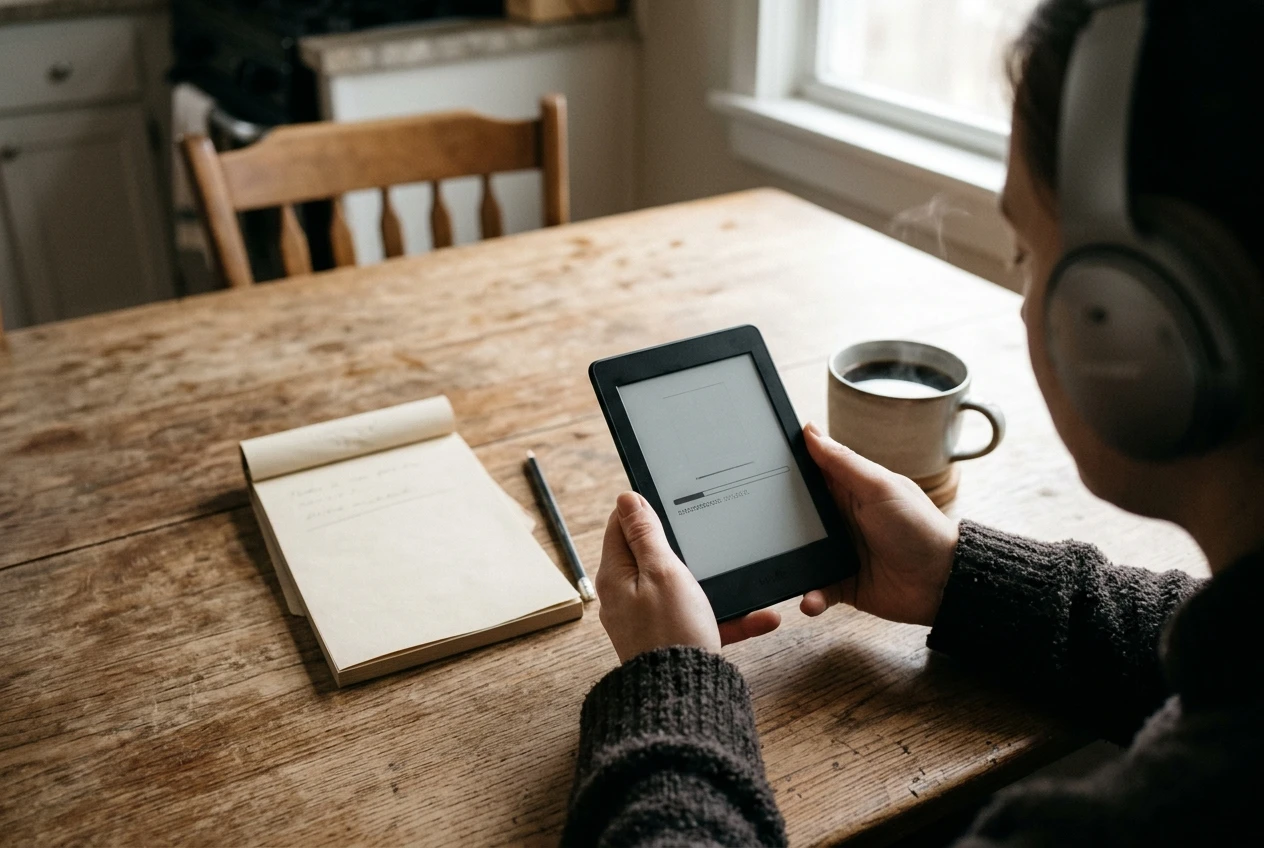
Most audiobook listings on Audible offer a free sample, so you can hear the narrator before you spend a Credit or money on the book. Play it through the same headphones or speaker you will use on the Paperwhite, because the sound of a voice changes a little between devices.
While you listen to the sample, check for these things:
- Pace. Does the narrator leave room between sentences, or do the words run on?
- Pronunciation of unusual names. If the book has foreign or technical terms, a few sentences may reveal how carefully the narrator handles them.
- Energy over time. A voice that is pleasant for one minute can tire you over ten hours, so notice whether it feels steady or strained.
- How it sounds slowed down. If your player allows it, try the sample at 0.9x. A voice that holds up when slowed is a good sign.
A few minutes spent this way can spare you from a book you abandon in the first chapter because the voice does not suit you.
What to listen for in a narrator: warmth and clarity
When you compare narrators, two qualities matter more than most others: warmth and clarity.
Warmth is how the voice feels to spend time with. A warm narrator sounds like they are speaking to you and not announcing at you. This tends to matter most for long listens and for fiction, where you spend hours in the narrator’s company.
Clarity is how easily you can follow each word. A clear narrator pronounces consonants cleanly, keeps a steady volume and avoids swallowing the ends of sentences. Clarity matters most for non-fiction and for anything you want to understand rather than simply enjoy, and it is also what survives slowing down. A voice with good diction at 0.8x sounds calm. A mumbled voice at 0.8x sounds like mumbling, only longer.
The best way to judge both is the sample, played at the speed you plan to use. If the voice sounds warm and clear at 0.9x or 0.8x, you have found a narrator that suits a relaxed pace. If it only works at full speed, that is worth knowing before the book is yours.
For books with no audiobook, the same thinking applies to VoiceView, only without the warmth. Clarity is what you are choosing there, and a slower rate is the setting that provides it.
Leave a Reply