If your ebook reader is not syncing, the first job is to find out which of the three things went wrong, because the fixes and the stakes differ. A wrong page number costs you thirty seconds of scrolling. A missing book is annoying but recoverable, since you can usually download it again. Missing highlights and notes are the real loss, because they hold the work you did while reading.
This guide goes in a fixed order: the cheapest check first, the drastic fixes last. Stop at the first step that works, and do not skip ahead to a reset, because the later fixes are the ones that can destroy data.
First, work out what isn’t syncing
Open the book on both devices, such as your ereader and your phone app, and compare three things.
- Position: do both show the same page or percentage, or does one sit several chapters behind?
- Highlights and notes: does a passage you marked on one device appear on the other?
- Books: is a title you own on the ereader missing from the phone app, or the reverse?
Write down which of the three is off. Position problems are usually settings or timing. Highlight problems are often a connection issue or a case where the highlight never uploaded. Book problems are usually about the account, the region or how the file arrived on the device. Each gets its own section below.
If all three are off at once, the cause is almost always the account or the connection, so start with the two-minute checks.
The two-minute checks
Most sync failures come from something simple, and these checks cost nothing.
Confirm the connection is working. An ereader’s Wi-Fi icon can show connected while the network has no internet access, which happens often with hotel or office networks that need a login page. Open a web page on your phone while it is on the same network. If that fails, the problem is the network, not the ereader.
Check airplane mode on both devices. It is easy to leave it on after a flight or to switch it on while a device sits in a bag. Phones also have a data-saving or low-power mode that pauses background activity, which stops an app from syncing until you open it.

Press the sync button yourself. Syncing often runs in the background on a schedule, and a device that has been asleep may not have run it. On a Kindle, look for the sync option in the menu. On a Kobo, tap the sync icon on the home screen. On a phone app, pull down on the library screen or look for a sync entry in the settings. Wait for the process to finish, since interrupting it can leave the device in the same state as before.
Sync the other device too. Sync is a two-way exchange. Your ereader may have uploaded your latest position, but the phone app will not show it until the phone downloads it. Sync both, then check again.
Check the date and time. A device with the wrong date or time zone can fail to connect to its service. Set both to automatic if they are not already.
If everything now matches, you are done. If not, move on to the section that matches your problem.
When the page number is wrong
Position sync, usually called last-read position, is the most commonly misunderstood part of the process. Devices do not compare page numbers, because page numbers differ between devices. A larger font on your phone produces more pages than a smaller font on your ereader. What the services store is a location inside the text, and each device converts that location into its own page numbering.
That is why page 112 on one device can be page 164 on another and still be the same spot. If the text itself is in the same place, nothing is broken.
When the location really is different, these are the usual causes:
- The device did not upload your last position. If you closed the book and the device lost its connection before it uploaded, the service never received it. Reopen the book on the device you read on last, with a working connection, and sync.
- A prompt was dismissed. When you open a book on a second device, some apps ask whether to jump to the furthest page read on another device. If you tap no, the book stays where it was. Opening the book again often brings the prompt back.
- The setting that controls position sync is off. Check the device settings and the app settings for an option related to syncing your reading position or progress. Some services let you turn it off, and the choice may differ between your ereader and your phone.
- The two copies are not the same file. If one copy was bought from the store and the other was loaded onto the device from your computer, they are different files to the service. Position data will not move between them reliably, because the service cannot tell they are the same book. The same applies to two different editions of one title.
- Delay. A sync can take a few minutes to appear on another device. Give it that long before you try anything more drastic.
The fix for the sideloaded-copy case is to read the store-bought copy on both devices, or to use the same sending method for both, rather than trying to repair the position.
When highlights and notes go missing
Do not assume they are gone. In most cases, they are stored somewhere other than where you are looking.
Check whether the highlight uploaded. A highlight made while the device was offline is stored locally and is sent the next time the device connects and syncs. If you made it on a plane or in a dead zone, sync with a working connection and wait. This is the most common reason a highlight appears on one device and not the other.
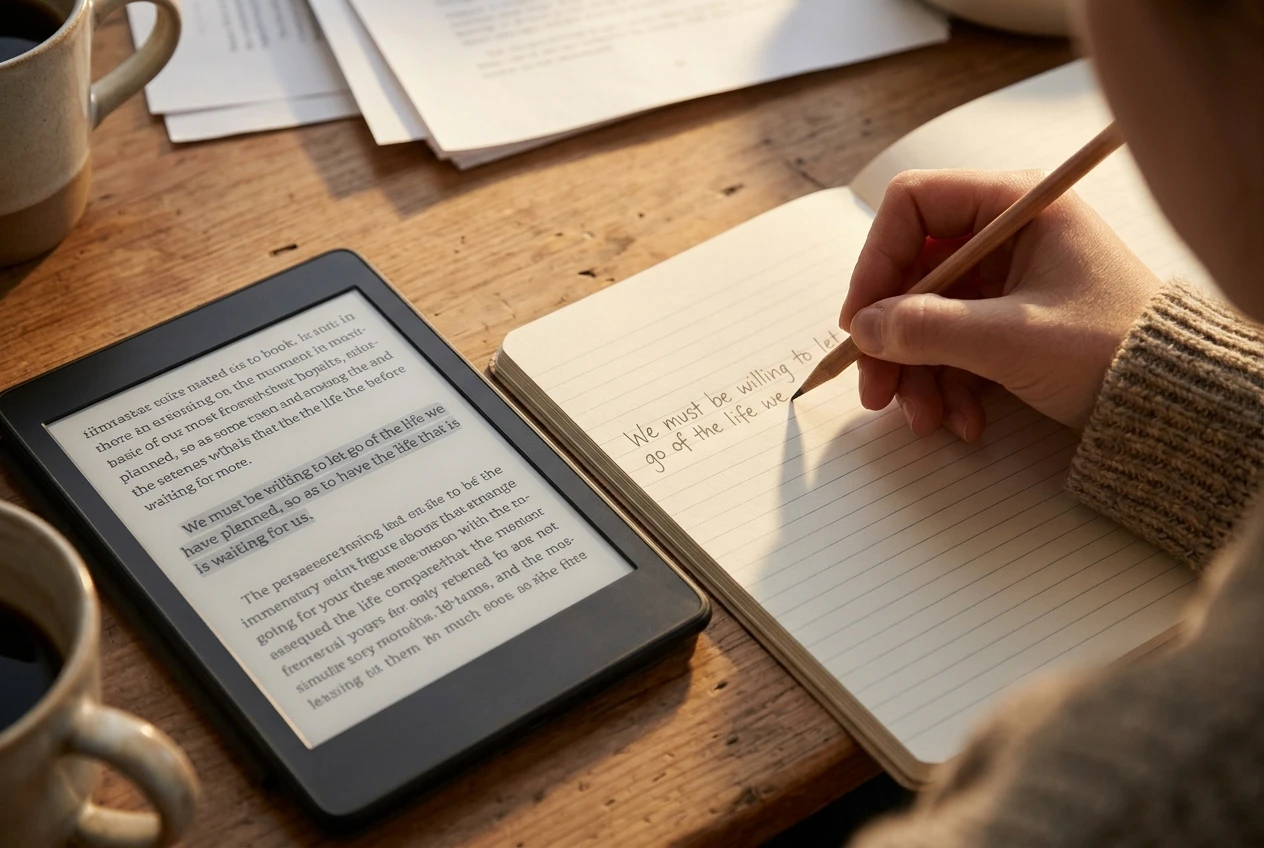
Check the service’s own web view. Amazon, for example, has a web page that lists your Kindle highlights by book. If a highlight is there, the service has it, and the device you are checking has not downloaded it yet. Kobo and other services have their own account areas or apps where annotations show. If the highlight is in the account view, run another sync on the device that is missing it.
Check the book type. Highlights in books that were not bought from the store you are using behave differently. A personal document or sideloaded file may keep its notes only on the device where you made them, or sync them only in limited ways. Check the help pages for your device and the way the file was added. If the book was loaded by USB cable, assume the highlights are stored on that device and nowhere else until you have checked.
Check the app’s annotation settings. Look at both the ereader and the phone app for settings about syncing notes, highlights or annotations. Some of them can be turned off, and some apps can show or hide highlights in the text without deleting them.
Check that the book is the right edition. As with position, highlights attach to a specific copy of a book. A different edition or a re-downloaded copy of a book with updated text may not show the old highlights straight away.
Make a copy of what you can see before you try anything else. If the highlights exist on one device, copy or export them now, using the method in the backup section below. Several of the last-resort fixes later in this article remove local data, and you should have a copy before you use them.
When a book won’t appear on one device
A missing book is a library problem, and it usually comes down to four things.
Account. Confirm that both devices are signed in to the same account. This sounds obvious, but a phone app can be signed in with a second account, such as an old email address, and it will show a different library. Check the account name in the settings of each device.
Region. Digital stores are organised by country. If your account is tied to one country’s store and your device or app is set to another, some books may not show up, and a book bought in one store may not be available in the other. Check the country or region in your account settings and make sure it matches on every device.
File type. A device can only show files it can open. If you added a book yourself, check that the format is one your ereader supports. Kindles and Kobos accept different formats, and a file that opens on one may not open on the other. Also check how the file got there. A book sent through the manufacturer’s own email or send-to-device service usually appears in your cloud library and on your other devices. A book copied over USB generally stays on that one device and will not appear on your phone.
Library loans and subscriptions. A book borrowed from a library or included in a subscription may expire or be returned automatically, and then it vanishes. Check your borrowing or subscription account before you assume a sync failure.
Also check the library filters. Many apps default to showing only downloaded books, or only books of a certain type. Switch the view to all items and look again.
If the book is in your account but not on the device, find it in the cloud list and download it. If it is not in the account list at all, contact the store’s support with proof of purchase.
The last-resort fixes, and what each one risks
Go through these in order, from least to most risky. Before any of them, copy your highlights as described in the next section.
- Restart the device. A restart clears temporary glitches and does not remove any data. Do this before everything else on this list.
- Sign out and sign back in. This forces the device to re-establish its connection to your account. Risk: on some devices, signing out removes downloaded books from the device. They remain in your cloud library, but you will need to download them again, and sideloaded books may be removed completely.
- Remove the book and download it again. This often fixes a single book that will not sync. Risk: highlights stored only on the device, such as ones made offline and never uploaded, can be lost with the local copy. Confirm they exist in your account first.
- Update the software. Check for an update to the ereader’s firmware and to the phone app. Risk is low, but charge the device first and do not interrupt the update.
- Uninstall and reinstall the phone app. This clears the app’s stored data. Risk: anything stored only in the app, including offline highlights, is gone.
- Factory reset the ereader. This returns the device to its original state. Risk: it removes everything stored on it, including sideloaded books and any annotations that never reached your account. Use it only when nothing else has worked, and only after backing up.
If you reach step 6 and the problem remains, contact the manufacturer’s support. It may be an account problem you cannot fix from the device.
A simple backup habit so a broken sync never costs you your highlights
Sync is a convenience, not a backup. If the service has an outage, if you reset a device or if a highlight never uploaded, the copy you were relying on can disappear. The fix is to keep your own copy of your highlights, in a place you control.
A weekly routine takes about ten minutes.
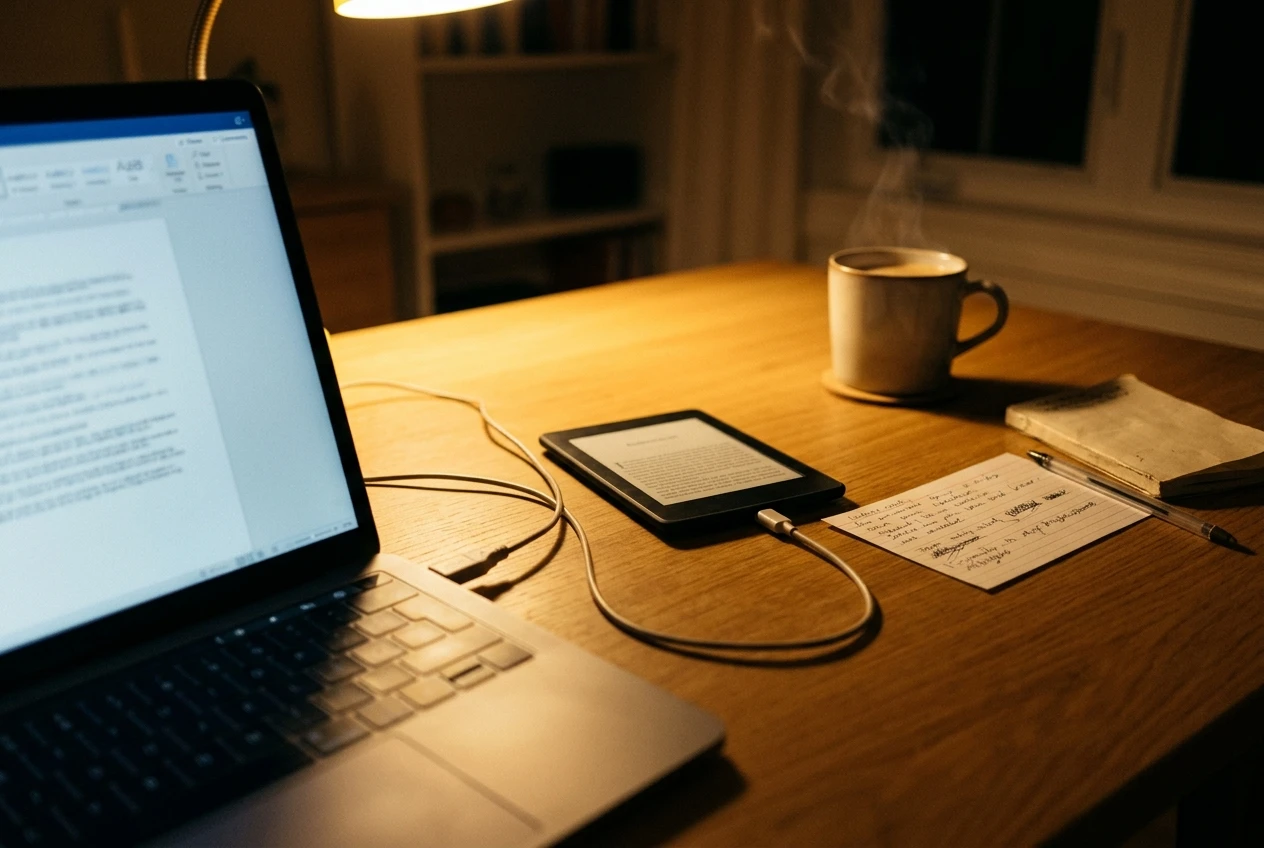
- Pick one place to keep highlights. A notes app, a document or a spreadsheet will do. One place is better than several, because it is easier to search later.
- Export or copy after each finished book, or once a week. Use whatever export option your device or reading app offers. Some let you email your notes to yourself from the device. On a Kindle, you can also connect it to your computer by USB and copy the file named My Clippings.txt from the documents folder. Be aware that some publishers limit how much of a book can be exported this way, so check that the export contains what you expect.
- Add one line about why the passage mattered. A highlight with no context is hard to use a month later. A single sentence about the project, question or decision it relates to makes it far more useful.
- Name the file by book and date. Something like the title and the month is enough to find it later.
This also helps with the problem many readers have of finishing books and remembering little. Highlights sitting in a device menu are rarely reviewed. Highlights in a notes file you open every week are much more likely to be used.
Sync will still fail now and then. With this habit, a failure costs you a few minutes of checking instead of the notes themselves.

Leave a Reply